1. God Mode 🛠️: All-in-One Control Panel
Ever wished for a single place to access all Windows settings? Activating "God Mode" does just that. How to Enable:
- Create a new folder anywhere on your desktop.
- Rename it as
GodMode.{ED7BA470-8E54-465E-825C-99712043E01C}. - The folder icon will change to a control panel. Open it to see all settings available in one place.
You unlock a dashboard with virtually every setting available, from administrative tools to backup settings. Perfect for quick tweaks and system adjustments.
Example Use: Quickly access advanced options like disk management or system performance settings without hunting through menus.
2. Windows Package Manager (winget): Fast App Installations and Updates
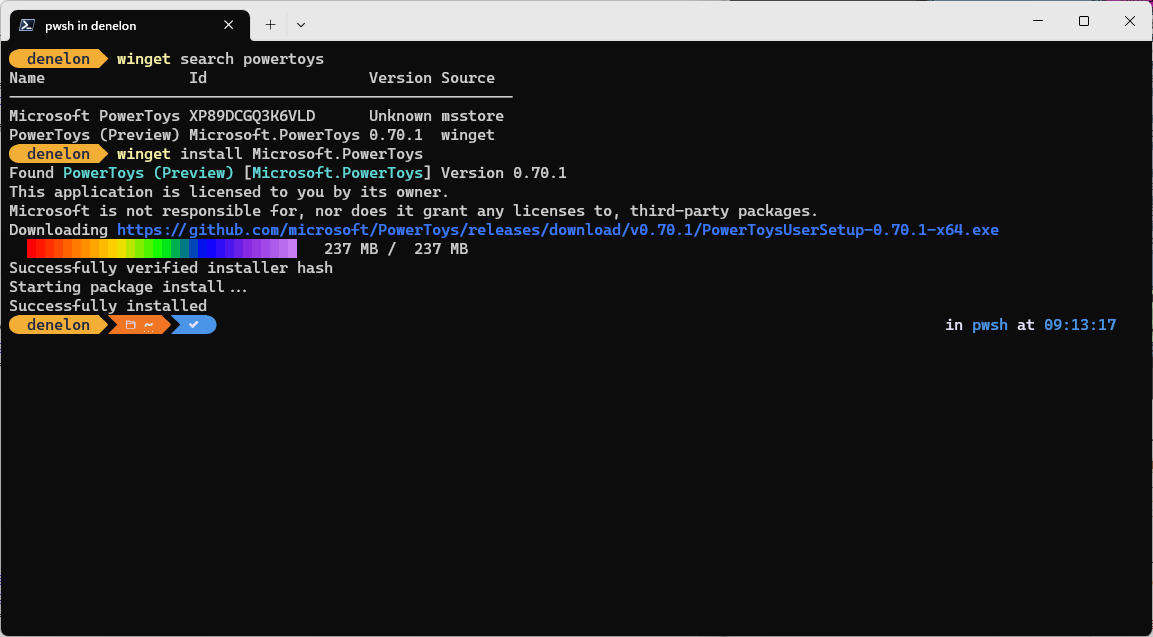
How to Use:
- Open PowerShell as Administrator.
- Type
wingetto confirm it’s installed (it comes with Windows 10 and 11). - To install a program, type
winget install <app name>(e.g.,winget install firefox). - Use
winget upgrade --allto update all installed apps.
Example Use: If setting up a new PC, use winget to install all essential software quickly.
3. Virtual Desktops for Task Management 📑
How to Use:
- Press
Windows + Tabto open Task View. - Click "New Desktop" to create another virtual desktop.
- Switch between desktops with
CTRL + Windows + Left/Right Arrow.
Advanced Tip with PowerToys FancyZones:
- Open PowerToys, go to "FancyZones," and create a custom layout for each desktop to organize windows more effectively.
Example Use: Create separate desktops for projects to avoid clutter and switch between them seamlessly.
4. Quick Actions with PowerShell Scripts and Scheduled Tasks ⏲️
How to Set Up a PowerShell Script in Task Scheduler:
- Write a PowerShell script (e.g., for backup:
Copy-Item C:\important C:\backup\important -recurse). - Save it as script.bat
- Open Task Scheduler, select "Create Basic Task."
- Name your task and set a schedule (e.g., daily, weekly).
- In "Action," select "Start a program" and point it to PowerShell with the path to your script.
Example Use: Automate weekly backups or reminders to keep your system organized.
See and copy the example below where I am copying recurrently the files from my obsidian vault to my NAS, this task runs every day with the task manager. You can run just the xcopy command but this is the way I am.
@echo off
echo Script iniciado a las %time% del %date%
xcopy "C:\Users\DeanG\OneDrive\ObsidianVault" "\\192.168.1.171\Nas\Guillermo\ObsidianVault" /E /Y
if %errorlevel% neq 0 (
    echo Error al copiar los archivos. Código de error: %errorlevel%
) else (
    echo Archivos copiados exitosamente.
)
echo Script finalizado a las %time% del %date%
pause
5. Storage Sense: Auto-Clean Up Unused Files 🗑️
How to Enable:
- Go to Settings > System > Storage.
- Toggle on “Storage Sense.”
- Click “Configure Storage Sense or run it now” to customize which files it should delete and when.
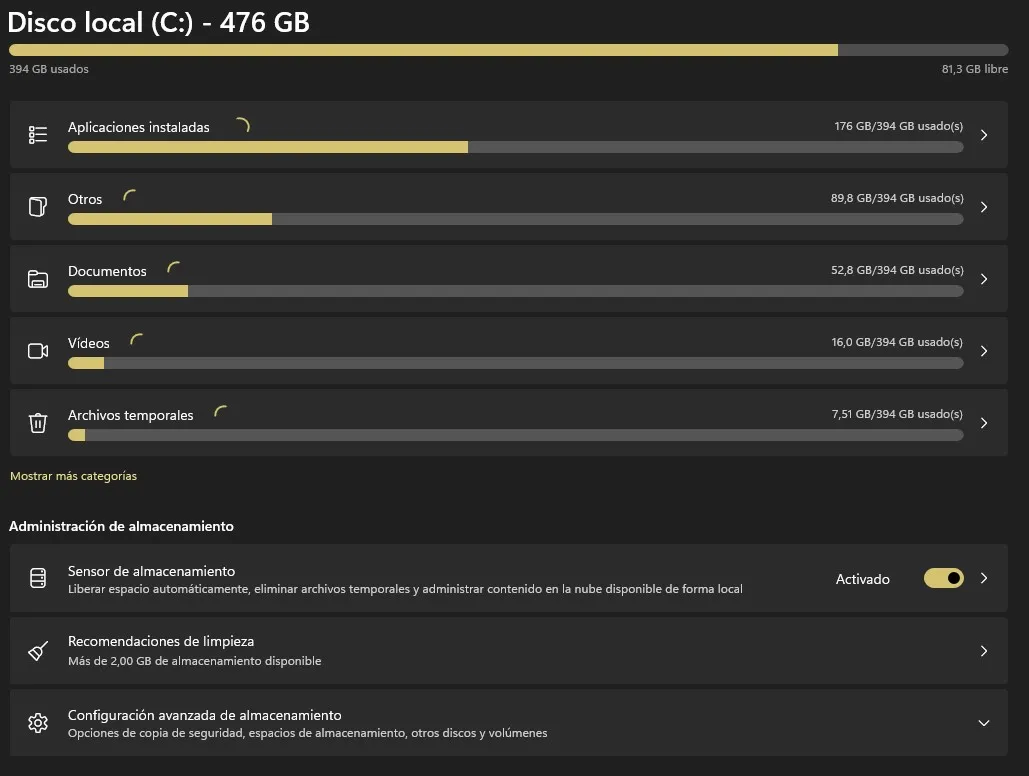
Example Use: Clear temporary files every month to free up space without needing third-party tools.
6. Dynamic Lock: Automated Screen Locking for Security 🔒
How to Set Up:
- Ensure Bluetooth is on and your phone is paired with your computer.
- Go to Settings > Accounts > Sign-in options.
- Scroll to Dynamic Lock and check “Allow Windows to automatically lock your device when you’re away.”
Example Use: When you step away with your phone, your PC will lock automatically, enhancing security.