Using the Workspaces feature in Microsoft PowerToys has transformed the way I start my workday. By creating a custom workspace, I can launch all the applications I need in a single click. My morning routine involves opening Microsoft Teams, Microsoft Edge, Outlook, and Obsidian automatically. Here’s how I use this setup:
Starting the Day
After launching my workspace, I dive into Obsidian, where I review the previous day's notes and update my task list with today's meetings. This ensures I stay organized and prepared. See how I do it hereDuring Meetings
As meetings progress, I switch back to Obsidian to take notes directly under each meeting's heading, created earlier in the day.Other Applications
Edge opens my web tools for managing tickets and databases, while Outlook and Teams keep me connected to my emails and colleagues.
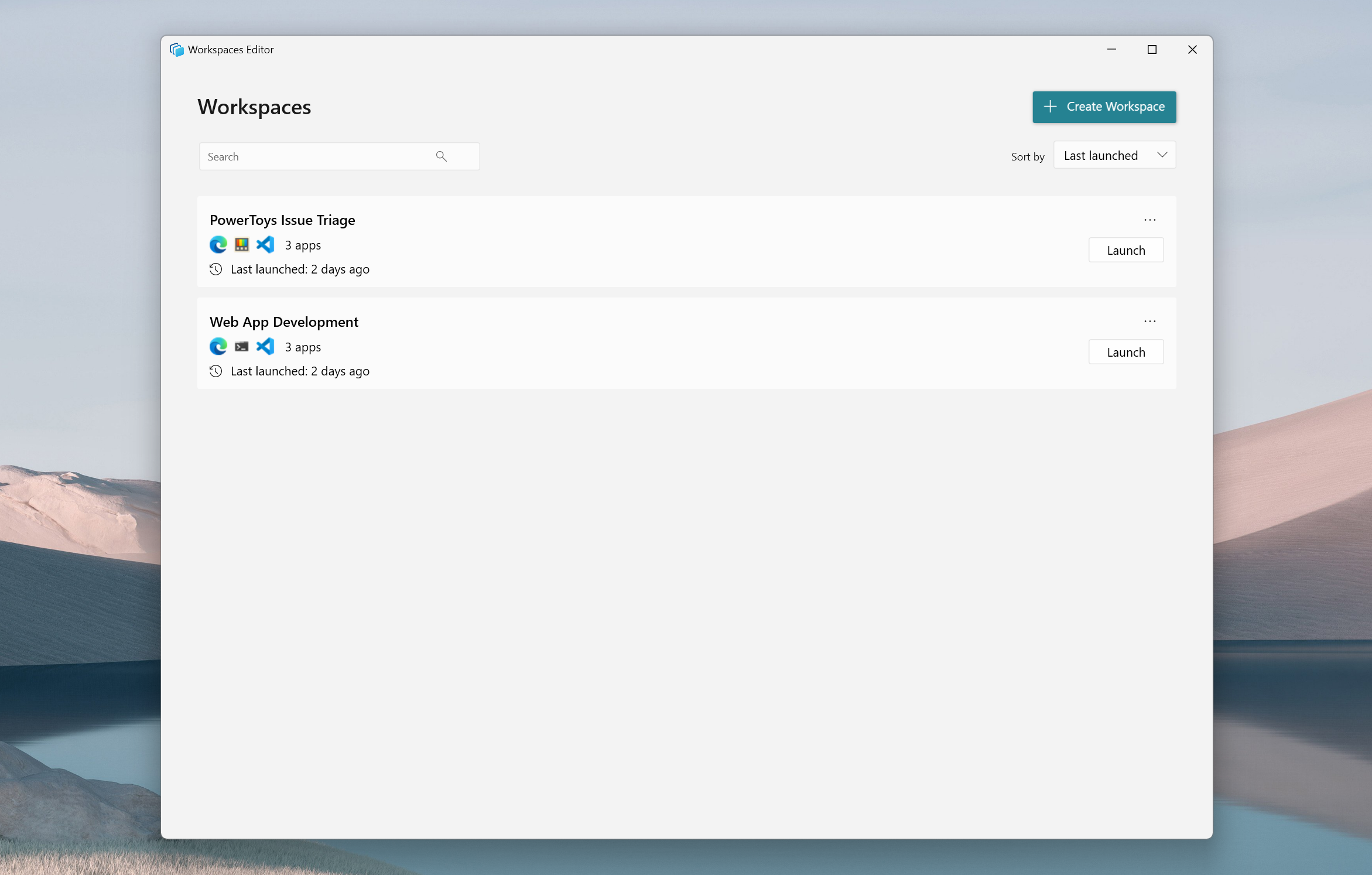
Other Use Cases for Workspaces
- Developers: Launch your IDE, terminal, browser tabs, and documentation tools all at once.
- Designers: Open your design software, reference boards, and communication apps simultaneously.
- Writers: Prepare your text editor, research tabs, and communication apps in a click.
On my personal computer I have two different workspaces: One for coding where I open again Obisdian, VSCode, and the Terminal. The other one is just the basic Browser (Brave), Obsidian again and again Outlook.
How to Create a Workspace
- Activate Workspaces: Enable it in PowerToys settings.
- Set Up Your Workspace: Use the Workspace Editor to position and configure your applications.
- Save and Customize: Add desktop shortcuts or taskbar pins for quick access.
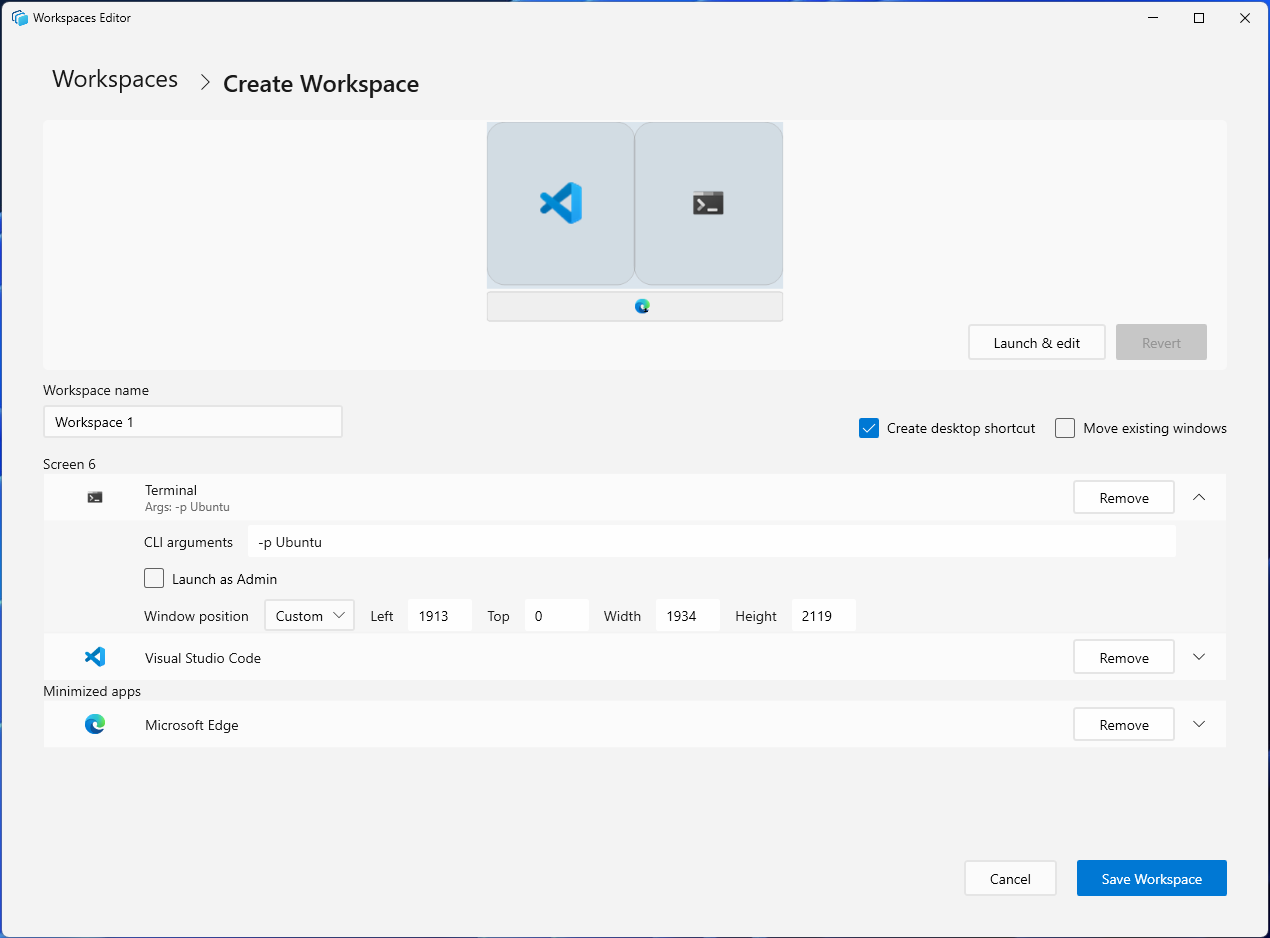
For a full walkthrough, check the official Microsoft PowerToys Workspaces guide. Work smarter, not harder!