Navigating Windows Like a Pro: ALT+Tab, WIN+Tab, WIN+X, WIN+., WIN+N
Hello Windows enthusiasts! 🪟 Ready to up your navigation game? Today, let's dive into a set of essential Windows shortcuts—ALT+Tab, WIN+Tab, WIN+X, WIN+., and WIN+N. Master these commands to seamlessly switch between tasks, access a power user menu, create quick notes, and manage notifications. Let's explore the nuances of each shortcut for a smoother Windows experience.
The Shortcut Breakdown
🔄 ALT+Tab: Task Switching Maestro
- Function: Switches between open applications.
- Why It's Awesome: Effortlessly navigate through running apps for efficient multitasking.
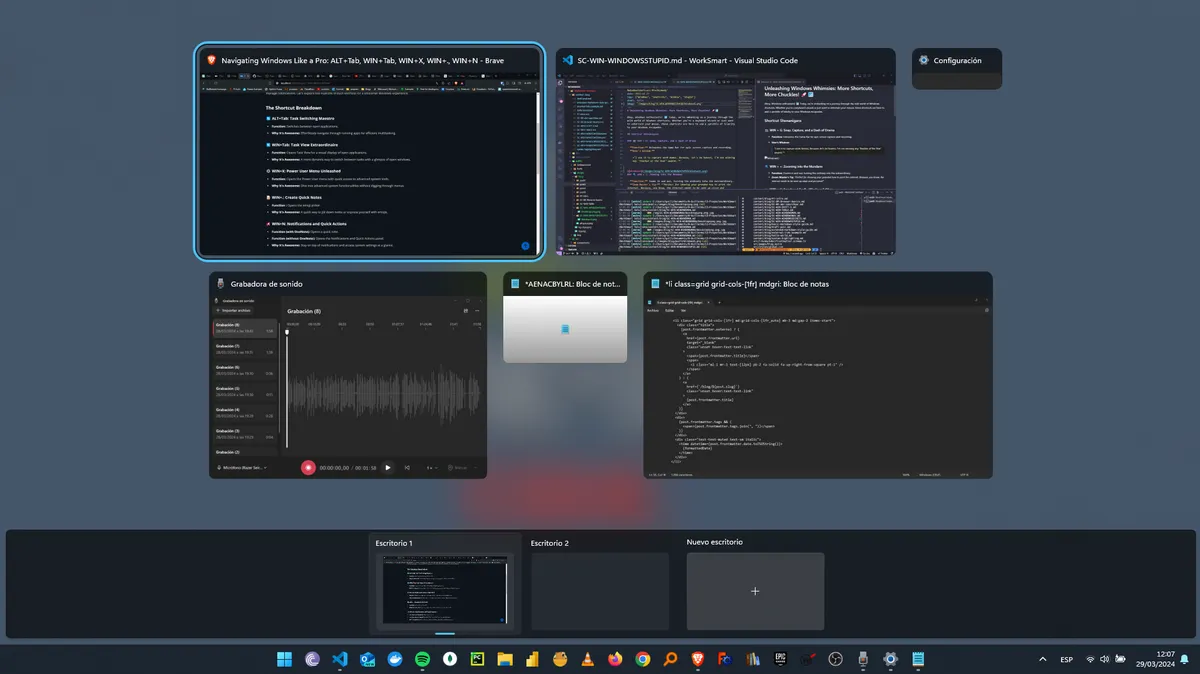
🔄 WIN+Tab: Task View Extraordinaire
- Function: Opens Task View for a visual display of open applications.
- Why It's Awesome: A more dynamic way to switch between tasks with a glimpse of open windows.
⚙️ WIN+X: Power User Menu Unleashed
- Function: Opens the Power User menu with quick access to advanced system tools.
- Why It's Awesome: Dive into advanced system functionalities without digging through menus.

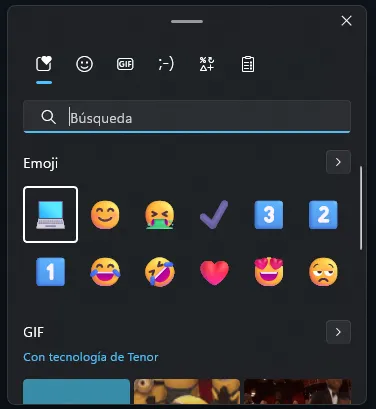
📝 WIN+.: Create Quick Notes
- Function : Opens the emoji picker.
- Why It's Awesome: A quick way to jot down notes or express yourself with emojis.
📢 WIN+N: Notifications and Quick Actions
- Function (with OneNote): Opens a quick note.
- Function (without OneNote): Opens the Notifications and Quick Actions panel.
- Why It's Awesome: Stay on top of notifications and access system settings at a glance.
Understanding WIN+N: The OneNote Dilemma
With OneNote Installed: On my Windows 10 computer with OneNote, pressing WIN+N opens a quick note, proving incredibly useful for instant note-taking.
Without OneNote: Without OneNote installed, WIN+N launches the Notifications side panel.
Note from the User (😊):
On my Windows 10 computer with OneNote installed, I find the quick note action with WIN+N extremely useful for instant note-taking. It's worth noting that, on the Windows support page, this action is listed as "Create a Quick Note" using the shortcut Alt+WIN+N. However, in my experience, WIN+N works seamlessly for this purpose. Try it!
How to Master These Shortcuts
ALT+Tab & WIN+Tab: Task Switching Extravaganza
- Use ALT+Tab to cycle through open applications.
- Try WIN+Tab for a visual overview of your running tasks.
WIN+X: Power Up Your Commands
- Press WIN+X to open the Power User menu.
- Access advanced system tools with ease.
WIN+.: Notes and Emojis at Your Fingertips
- Express yourself with the emoji picker.
WIN+N: Notifications and Quick Actions
- With OneNote: Create quick notes with WIN+N
- Without OneNote: Open the Notifications and Quick Actions panel with WIN+N.
In Conclusion
ALT+Tab, WIN+Tab, WIN+X, WIN+., and WIN+N—your keys to a more efficient Windows journey. Master these shortcuts to streamline your workflow, express yourself, and stay in control of your digital workspace. Your future, more navigable self will thank you! 🚀🪟 #WindowsShortcuts #ProductivityHacks
So, dive into the Windows shortcut world, elevate your navigation skills, and let the productivity flow! 🪟✨