Automate Email Notifications for New SharePoint List Items
Automating email notifications when new items are added to a SharePoint list can enhance team collaboration and ensure timely responses. Follow these steps to set up the automation using Power Automate:
Access Your SharePoint List:
- Navigate to the SharePoint site containing the list you want to monitor.
- Open the specific list where new items will be added.
Initiate Power Automate:
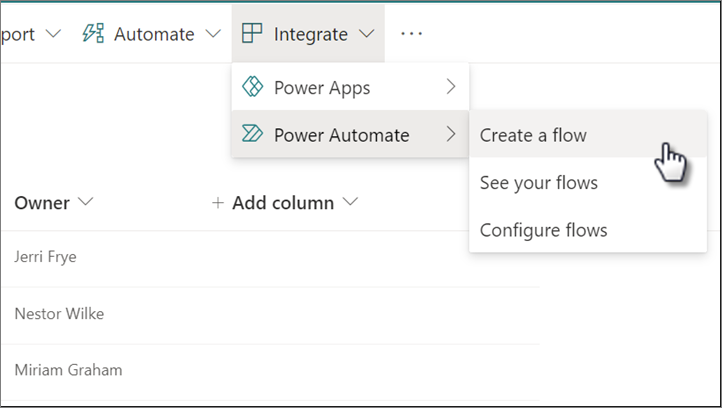
- In the list's command bar, click on Integrate.
- Select Power Automate from the dropdown menu.
- Create a New Flow:
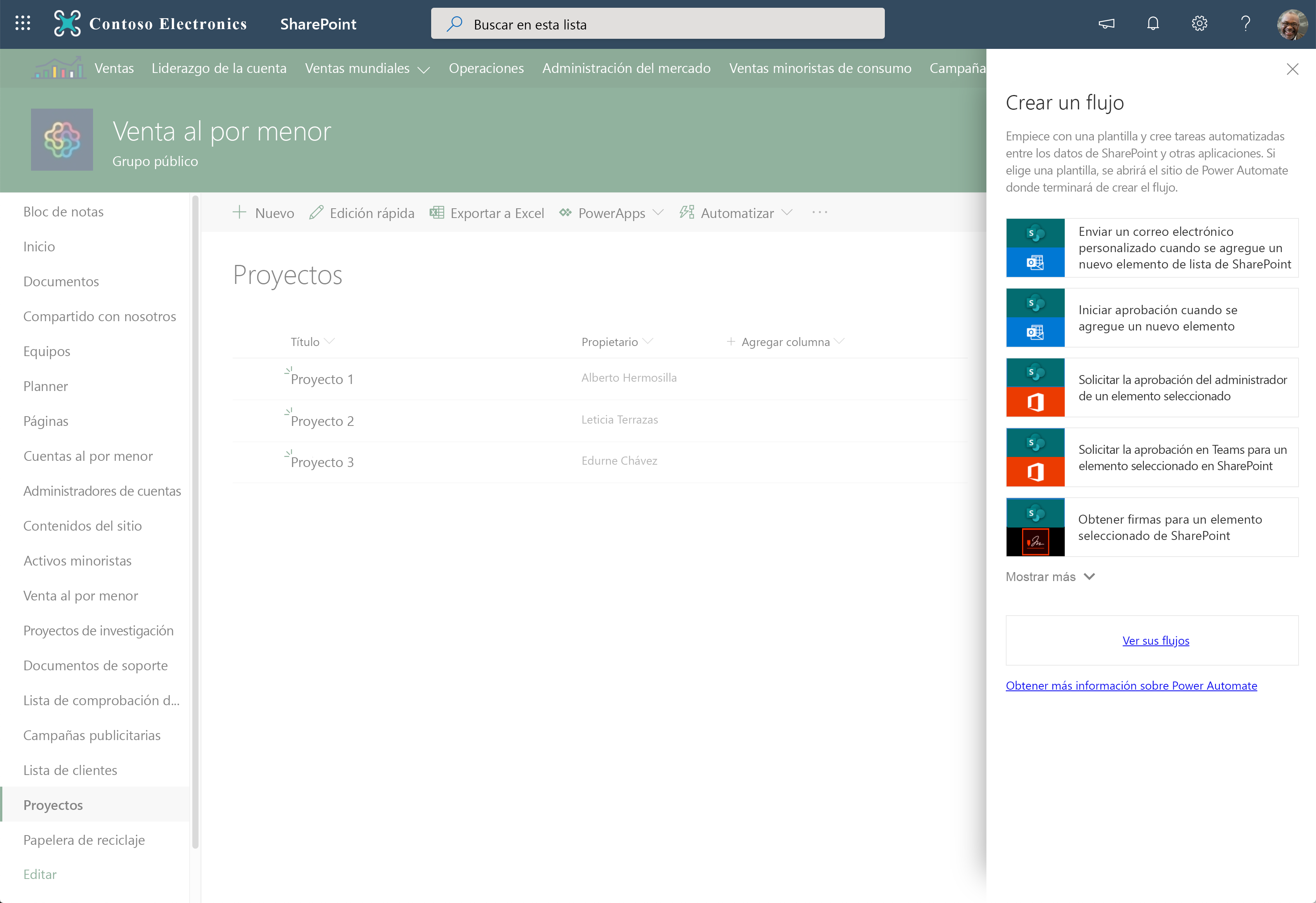
- Click on Create a flow.
- In the Create a flow panel, choose the template titled Send a customized email when a new SharePoint list item is added.
- Configure the Flow:
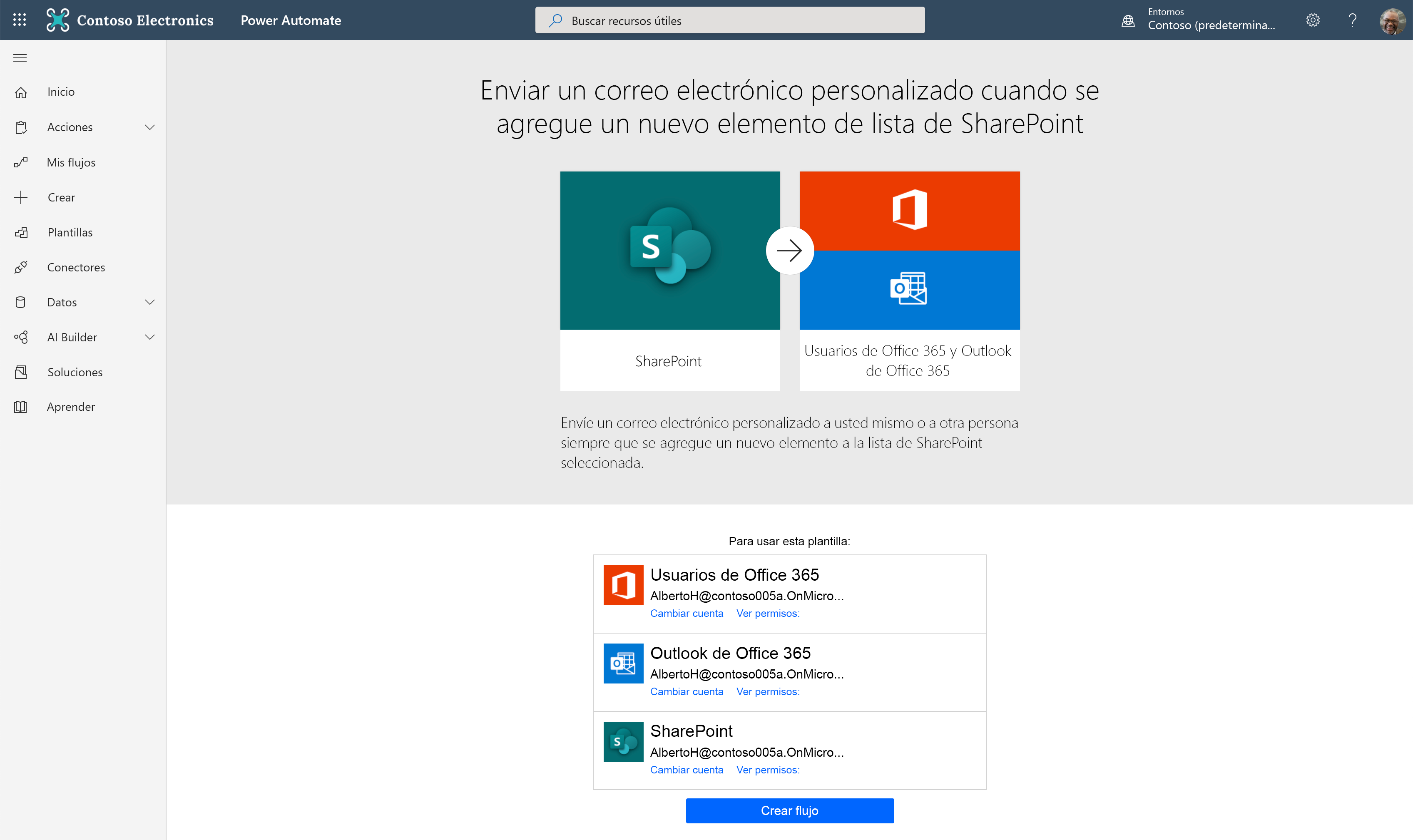
- Ensure that the SharePoint Site Address and SharePoint List Name are correctly set to match your list.
- Click on Create flow to establish the automation.
Customize the Email Notification (Optional):
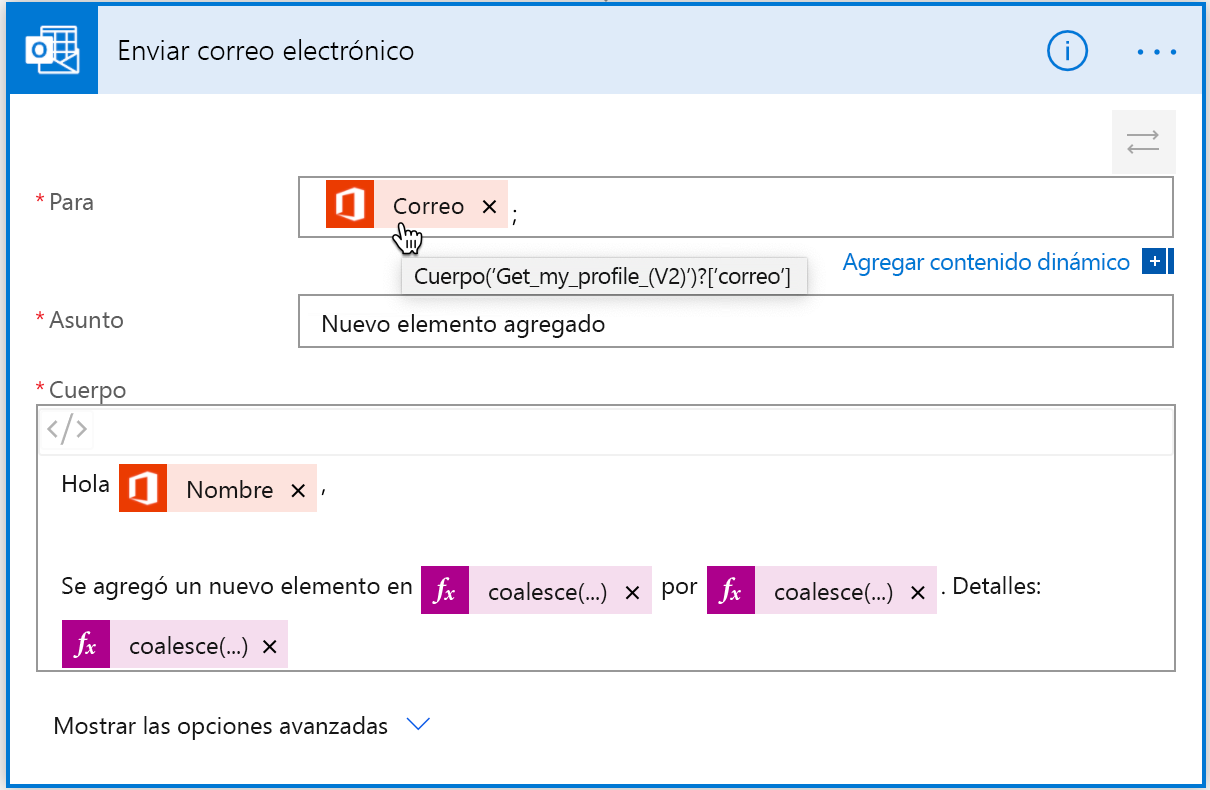
- After creation, you can edit the flow to customize the email content.
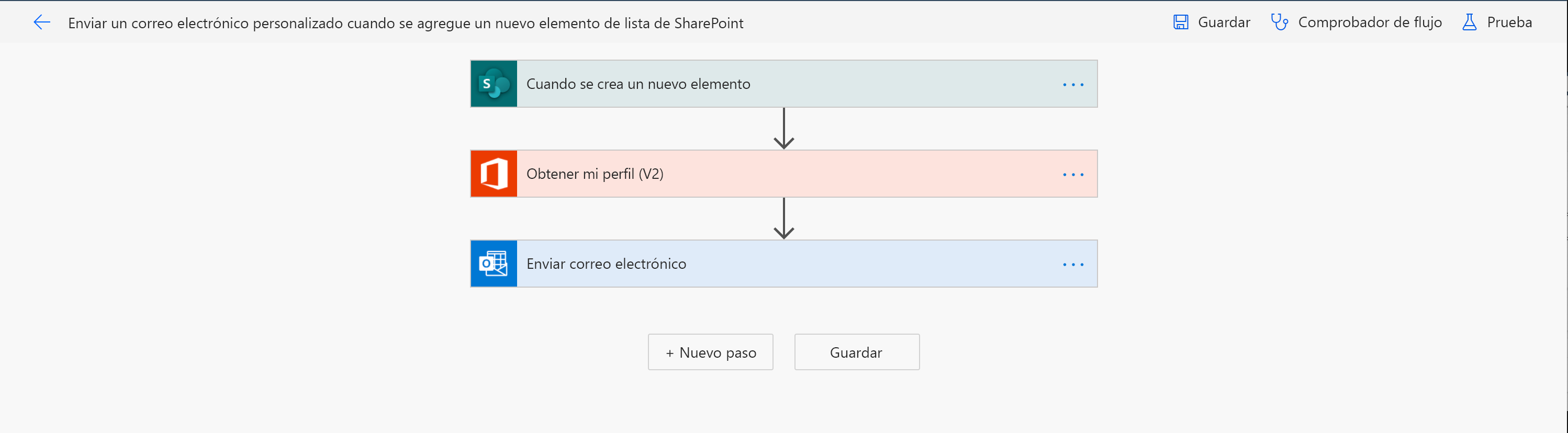
- Click on Edit in the flow details page.
- Modify the email subject, body, and recipient fields as needed.
- Save your changes by clicking Save.
- Test the Flow:
- Add a new item to your SharePoint list.
- Verify that the flow triggers and sends the email notification as configured.
By following these steps, you can automate email notifications for new items in your SharePoint list, streamlining communication and enhancing workflow efficiency.
For a visual guide on setting up this flow, you might find the following video helpful: