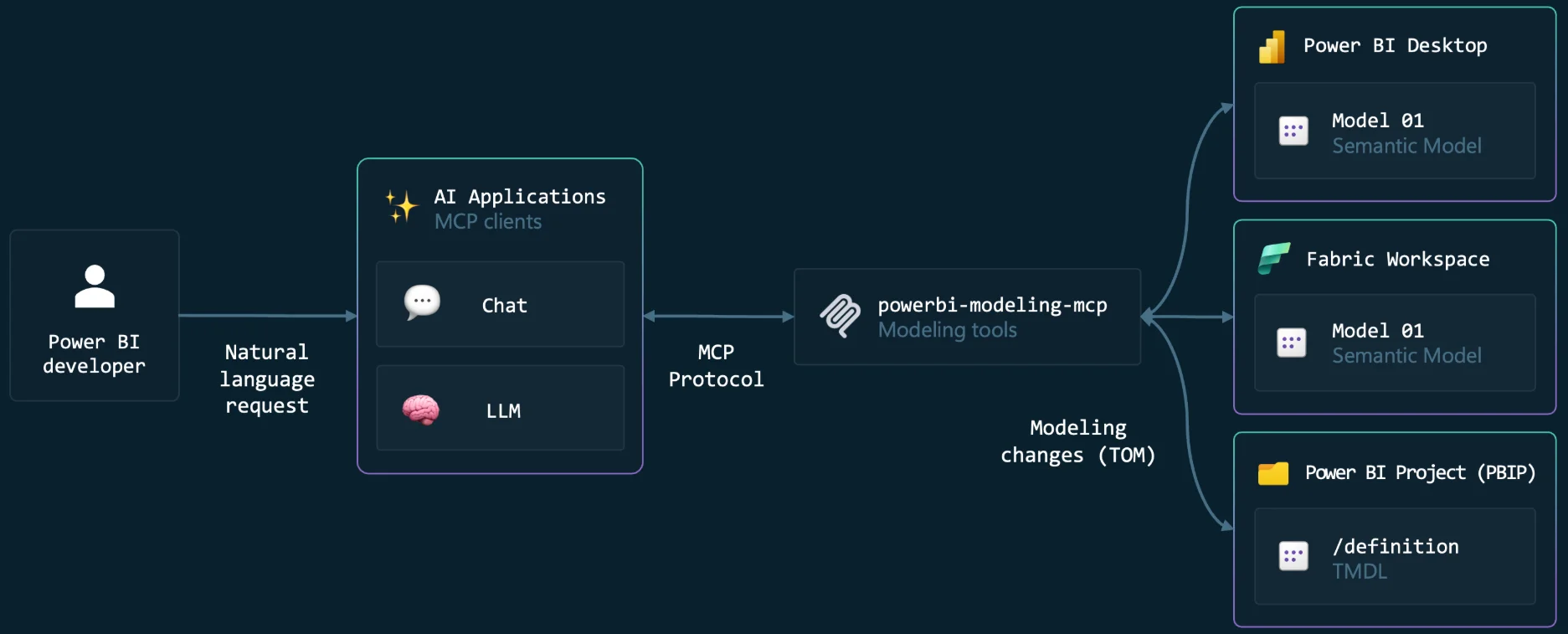
The Power BI Modeling MCP (Model Context Protocol) is a game-changer for BI developers. It allows AI agents like Claude to directly interact with, analyze, and modify your Power BI semantic models. This guide will show you how to set it up in both Visual Studio Code and Claude Desktop.
Note: This setup requires a recent version of Power BI Desktop and the ability to run external tools.
Prerequisites
- Visual Studio Code installed.
- Claude Desktop App installed.
- Power BI Desktop installed and running.
Part 1: Installing in Visual Studio Code (The Base)
The VS Code extension acts as the host for the MCP server.
- Open Visual Studio Code.
- Go to the Extensions view (
Ctrl+Shift+X). - Search for "Power BI Modeling MCP Server".
- Click Install.
- Once installed, you can open the GitHub Copilot chat (if you have it) and verify it's active.
Part 2: Configuring Claude Desktop
To get Claude Desktop to talk to this server, we need to point it to the executable that the VS Code extension installed.
Locate the Executable: The executable is hidden inside your VS Code extensions folder. The path usually looks like this:
C:\Users\<YOUR_USERNAME>\.vscode\extensions\analysis-services.powerbi-modeling-mcp-0.1.9-win32-x64\server\powerbi-modeling-mcp.exe(Note: The version number0.1.9might change, so check your folder).Open Claude Config: Open the Claude Desktop configuration file. You can usually find it at:
%APPDATA%\Claude\claude_desktop_config.json(Or access it via the Claude App: Settings -> Developer -> Edit Config).Add the Server: Add the
powerbi-modeling-mcpentry to themcpServerssection.Author's Note: "When I first ran the exe to see the suggested configuration, the result JSON given was not correct. The one on this document is the right one."
Remember to escape your backslashes (use
\\instead of\).{ "mcpServers": { "powerbi-modeling-mcp": { "command": "C:\\Users\\guill\\.vscode\\extensions\\analysis-services.powerbi-modeling-mcp-0.1.9-win32-x64\\server\\powerbi-modeling-mcp.exe", "args": ["--start"], "type": "stdio" } } }Replace
guilland the version number with your actual username and installed version.Restart: Save the file and restart the Claude Desktop application.
Part 3: Using It
- Open a report in Power BI Desktop.
- Open Claude Desktop.
- You should now see a 🔌 (plugin) icon or indication that the tool is connected.
- Ask Claude to "Analyze the current data model" or "Create a measure for Total Sales."
Happy modeling!
Extra
You can also follow this video of Guy in a Cube!